Step-by-step tutorial
How to Make a Tap and Hold Image
A tap-and-hold image is a transparent PNG that looks faint or blank on X's white timeline, then reveals the full picture when someone taps and holds it on the black background. Follow the steps below and try the editor as you read.

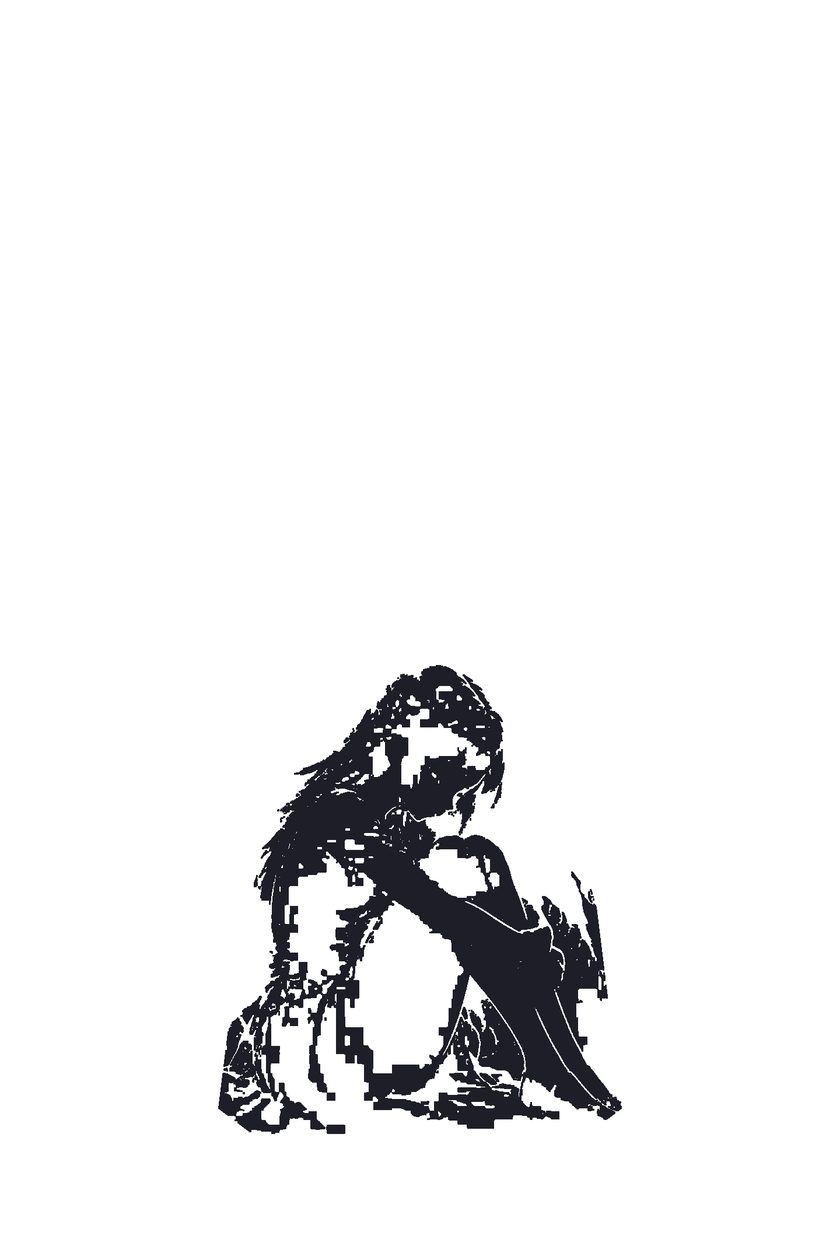
Drag the slider: left shows the timeline view, right shows the tap-and-hold reveal.
Use the editor below to follow along with each step.
Make your image in 6 steps
1. Upload your image
Drop any JPG, PNG, or WebP into the editor, or paste from clipboard. The file is processed locally in your browser and never uploaded to a server.
2. Pick a quick mode
Blank surprise hides almost everything on the timeline. Silhouette keeps a faint outline of the subject. Custom reveal lets you paint exactly what stays visible and what hides.
3. Refine the mask
Use the Wand to hide or keep whole color regions. Use the Brush to paint areas that should stay visible on the timeline, and the Erase tool to paint areas that should only appear on hold. Tap Invert selection if you prefer to paint the surprise area first.
4. Adjust brightness and ratio
Brightness boost helps if the timeline preview still looks too dark. For X, vertical ratios like 2:3 or 9:16 usually work best.
5. Preview both states
Switch between the timeline preview and the hold preview to make sure the effect works in both directions. If anything leaks through, go back and refine the mask.
6. Export and post
Download the PNG8 file and post it from a desktop browser at x.com. The X mobile app re-encodes images and breaks the transparency effect. After posting, wait 1–2 minutes for X to finish processing before testing.
Quick modes explained
Blank surprise
The timeline looks almost empty. Only viewers who tap and hold see the hidden image. Best for punchlines, spoilers, and big reveals.
Silhouette
A faint outline of the subject stays visible on the timeline, hinting that something is hidden inside. Best for teasers and announcements.
Custom reveal
You paint the mask yourself. Use the Brush, Erase, and Invert selection tools to decide exactly what appears on the timeline and what appears on hold.
Tool reference
Wand
Click an area to hide it. Shift-click or Alt-click to keep it visible instead. Adjust the Wand threshold to control how wide the color range is.
Brush
Paint areas that should stay visible on the timeline. The brush automatically snaps to edges, so you can trace subjects cleanly.
Erase
Paint areas that should be hidden on the timeline and revealed on hold. Use this to clean up backgrounds or hide extra details.
Invert selection
Flips every masked pixel. Useful when you find it easier to paint the surprise area first, then reverse the selection.
Two-image swap mode (advanced)
In two-image swap mode, the timeline shows one image and the hold view reveals a completely different image. Upload the main image first, then upload the hidden image. Important: pick a light or bright image for the timeline, or the dark hold background will leak through.
Post from a desktop browser
The X mobile app re-encodes and compresses uploads, which destroys the transparency your tap-and-hold image relies on. Always post from a desktop browser at x.com. Click Share on X in the editor to copy the image to your clipboard and open x.com, then press Ctrl+V in the post box to paste the image. Drag the downloaded PNG directly into the post composer if you prefer.
Common mistakes and fixes
| Problem | Fix |
|---|---|
| Image works on desktop but not on mobile | Post from x.com on a desktop browser, not the X mobile app. |
| Timeline image is too visible | Lower the Wand threshold, or use the Erase tool to hide more pixels. |
| Hidden image looks muddy on hold | Use Brightness boost or start with a brighter source image. |
| The reveal shows on the timeline | Your mask is inverted. Tap Invert selection to swap keep and hide areas. |
| Edges look jagged or eroded | Use a larger brush size for the edge-snapping brush, or refine with the Wand. |